Data in.
Motion out.
Screens that react to your data, to touch and to the time of day. One live scene on every screen, designed with your AI assistant and run from one panel.



ready in 2 minutes.

It changes with your data.
Prices, rates, occupancy and stock arrive on screen the moment they change.
Cafes · banks · retailIt answers to touch.
Visitors explore collections, maps and menus; it resets itself for the next one.
Museums · kiosks · showroomsIt is designed with AI.
Describe the screen to your assistant; it builds the scene and fills the fields.
Any spaceScreens work as one.
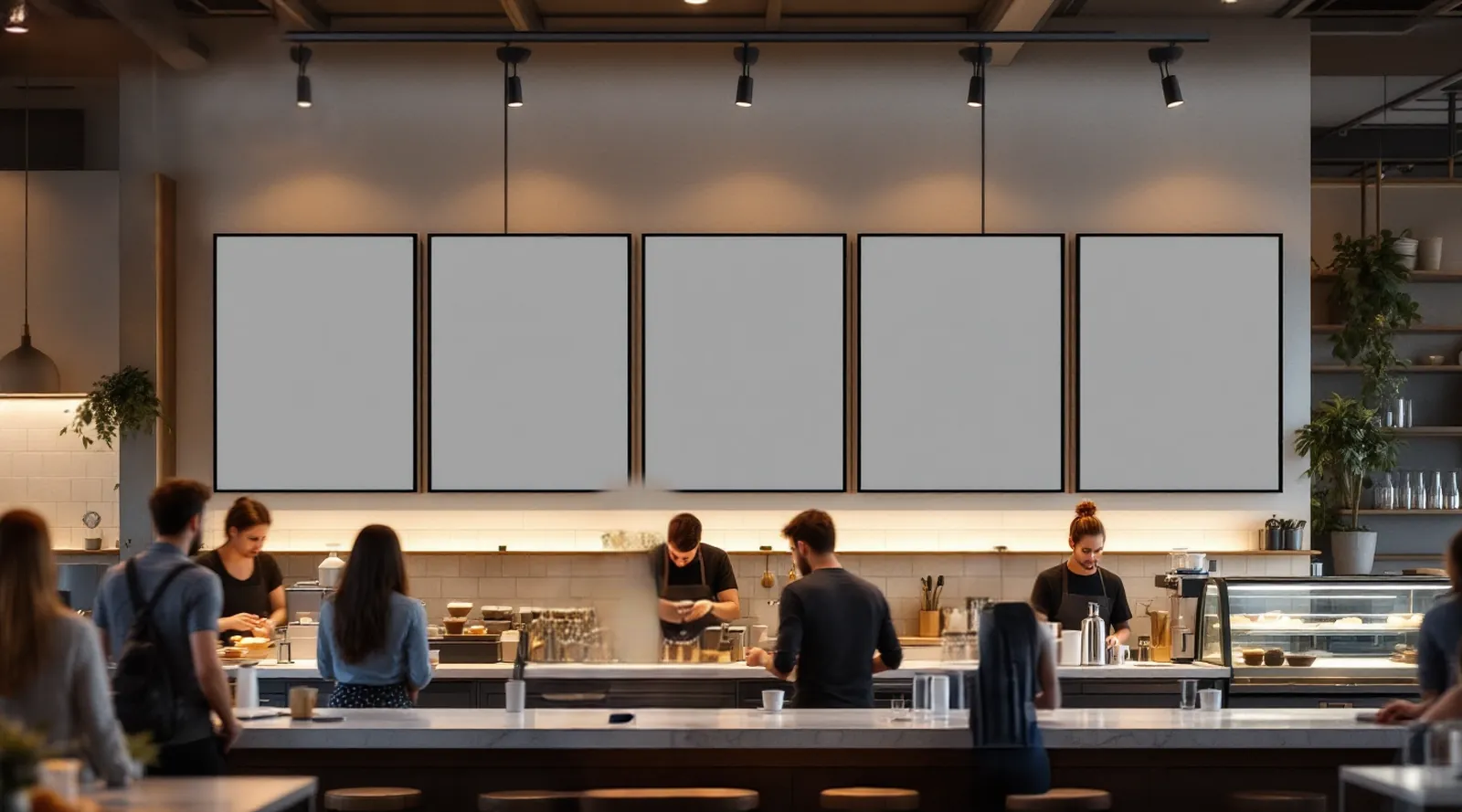
One scene spans five menu screens, an LED wall or a whole installation.
Menu walls · lobbies · eventsConnect your source.
Design the scene once. Its words, prices and photos become fields; your POS, a sheet, an API or your assistant fills them.
The price changes at the till; all five menu screens animate to it. The cafe above reads the same price.
| item | Caramel Latte |
| price | $5.20 |
| stock | yes |



Scenes are designed in OmniMotion Studio: 2D, 3D, interaction and data in one file.
Explore OmniMotion →A scene for every space.
Same panel, same player. Only your data and the shape of your screens change.
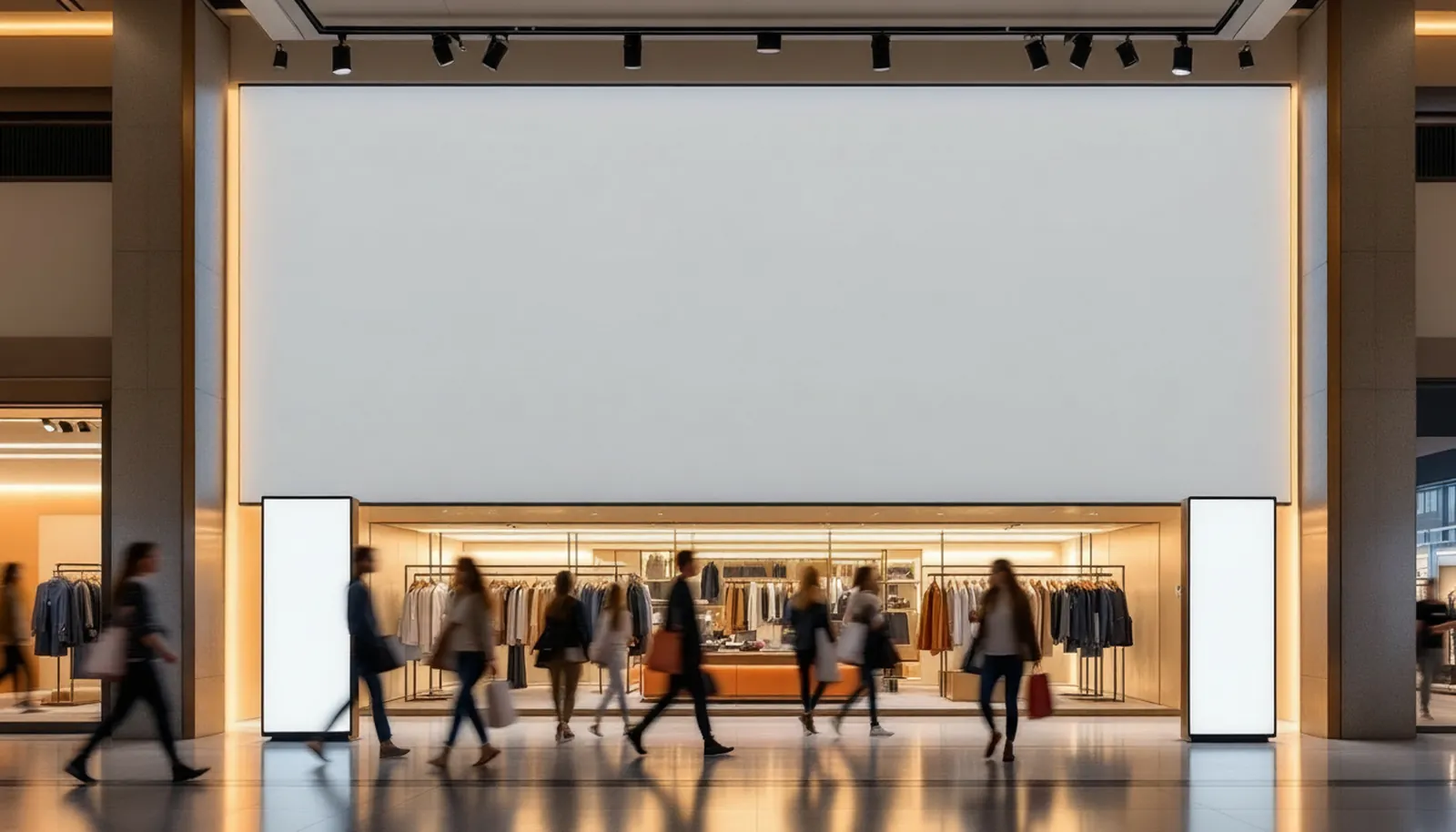
Marketing types one row into a sheet; the video wall and both totems show the same offer.

all coats.


18:30
- 01Cafes & restaurantsMenu boards, daily specials, offers, order queue.Data →
- 02Kiosks & museumsTouch kiosks, exhibit guides, wayfinding.Touch →
- 03RetailWindows, sales, new season, stock levels.Data →
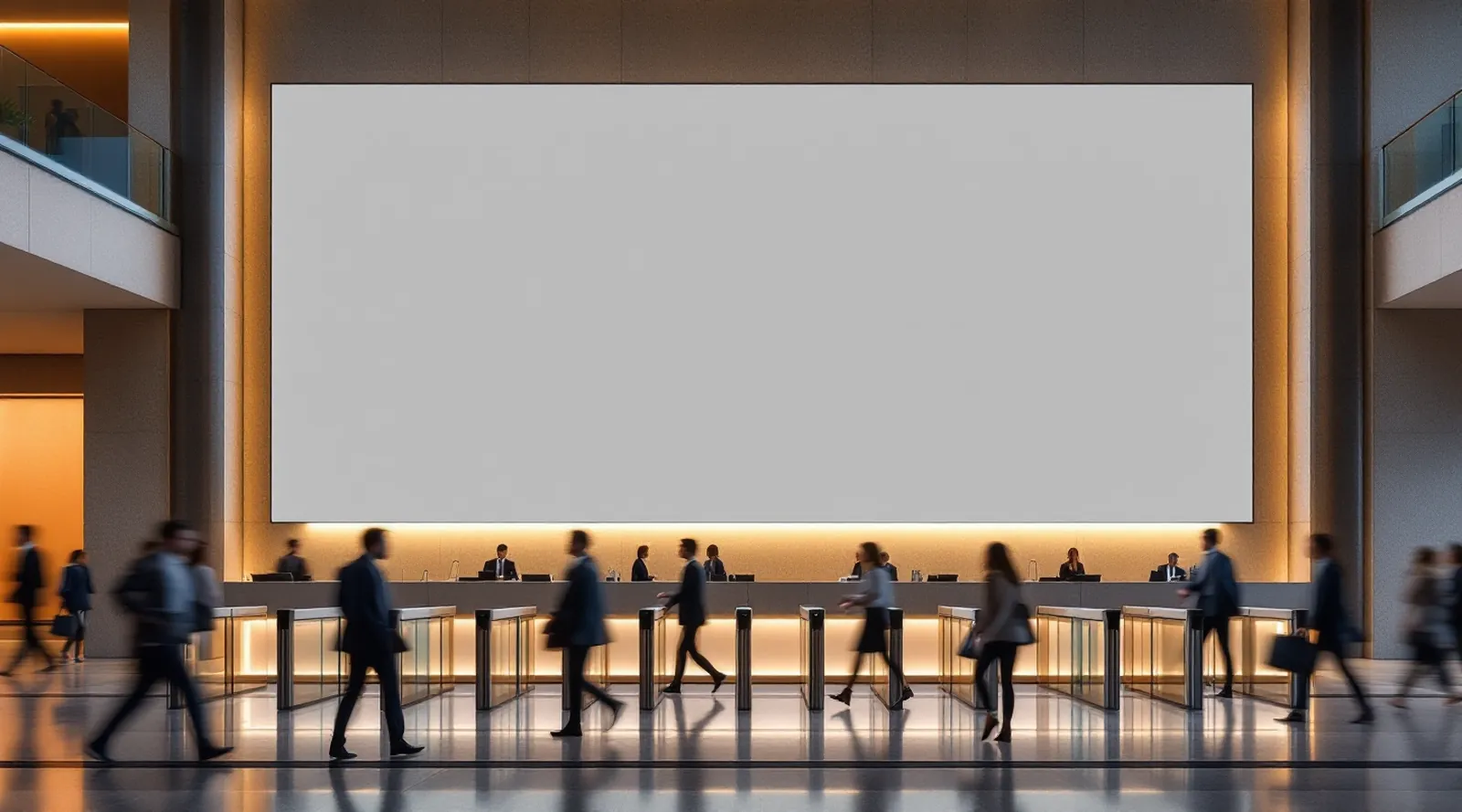
- 04Banks & corporateFX boards, announcements, waiting-room queues.Data →
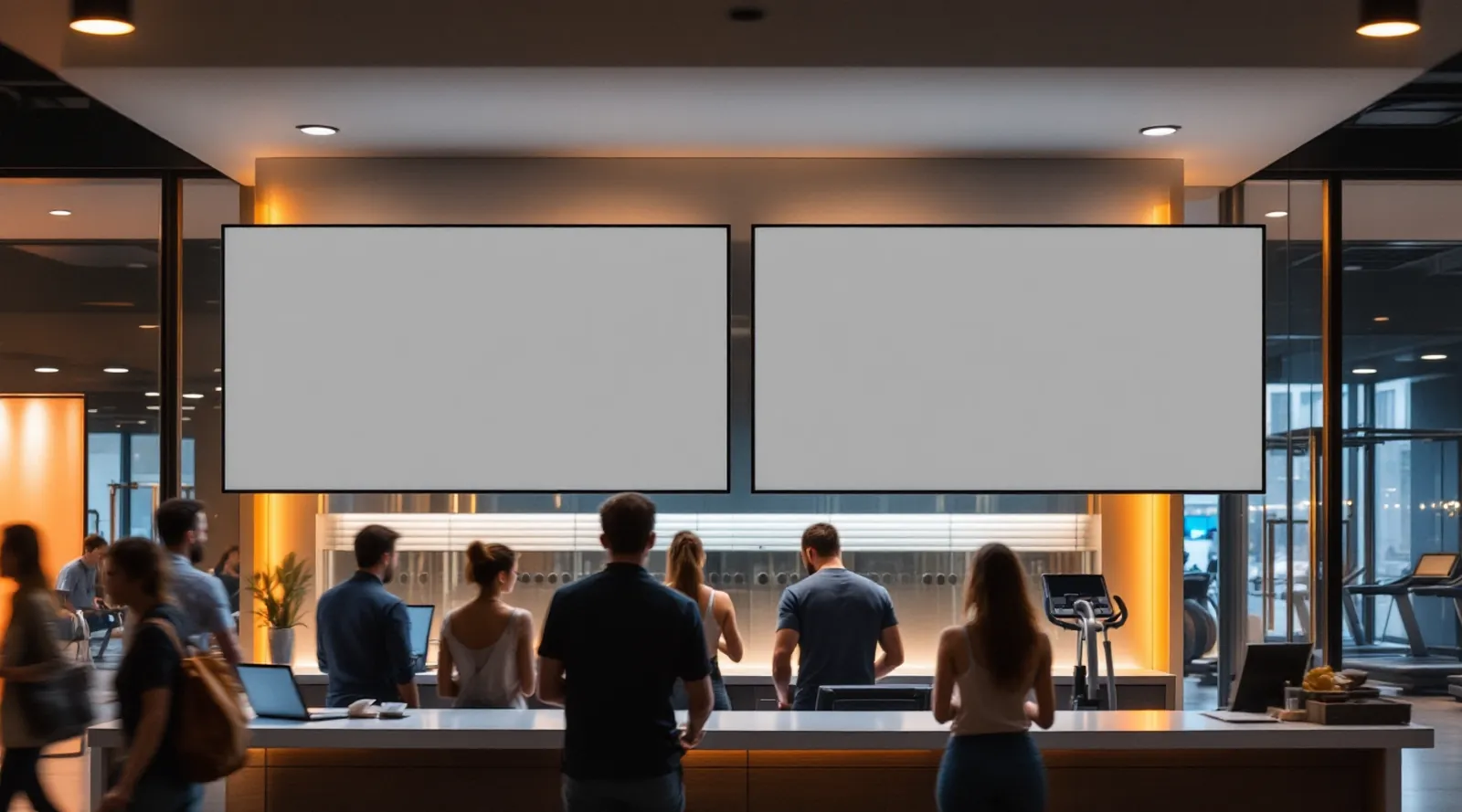
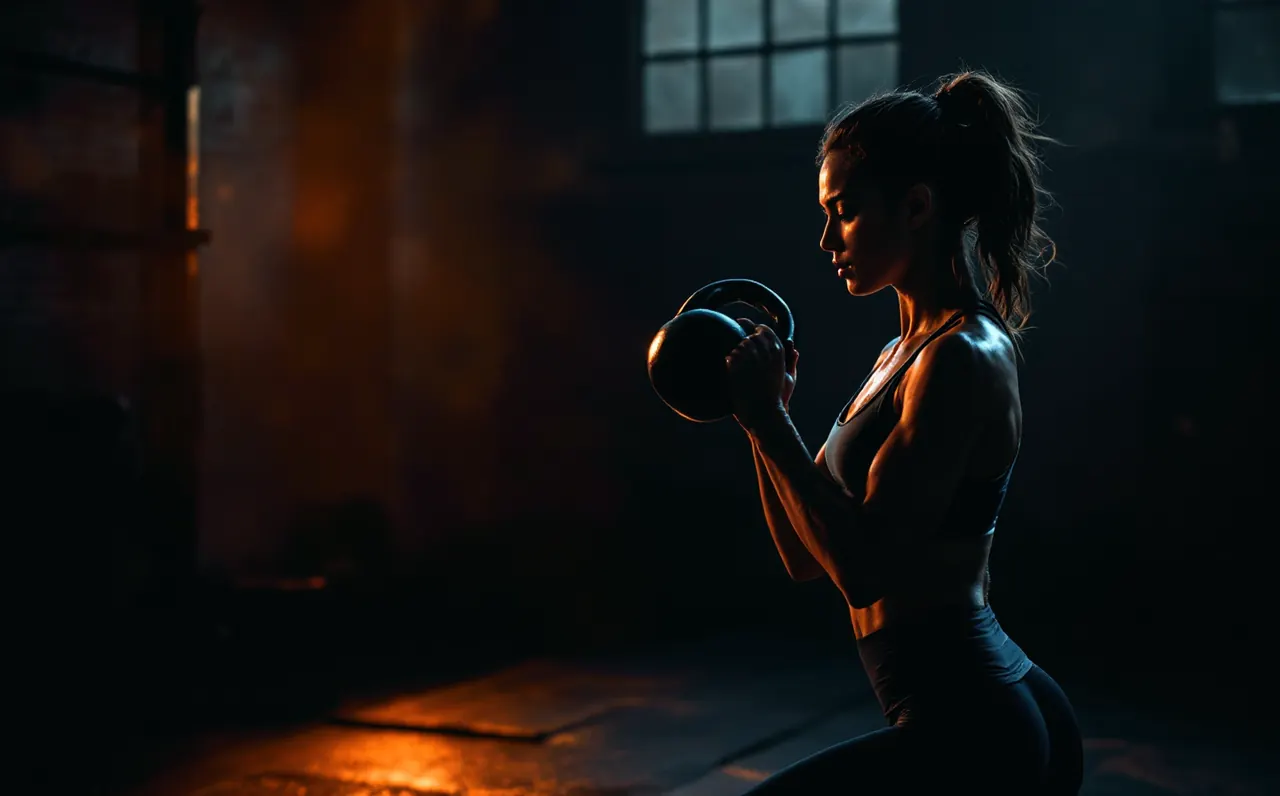
- 05Gyms & fitnessLive occupancy, class schedule, countdowns.Data · time →
- +Your spaceNot on the list? Tell us what your screens should do; we will build the scene with you.Tell us →
Your assistant designs.
In other signage tools, AI switches screens on and off. In OmniMotion it designs the scene, fills the fields and adds it to the playlist.
“Add a dessert offer to the evening menu and spread it across all five screens.” Draft ready, live once you approve.
- Desktop and code editorsLocalClaude Desktop, Claude Code, ChatGPT Codex, Cursor, Windsurf, VS Code, Gemini CLI, Google Antigravity
- Assistants on the webRemote · HTTPChatGPT and claude.ai: add one address as a connector.
- Your own agentOpen standardAny client or agent framework that speaks MCP uses the same tools.
{
  "mcpServers": {
    "omnimotion": {
      "command": "omnimotion",
      "args": ["mcp"],
      "env": { "OMNI_MCP_KEY": "omni_…" }
    }
  }
}
Key: Panel › Account › MCP keys. The same setup works in Windsurf, VS Code and Gemini CLI.
It can read
- Your screens and groups
- Template fields
It can do
- Design scenes, fill fields
- Add drafts to a playlist
It can’t
- See your other files
- Publish without you
Remote. One panel.
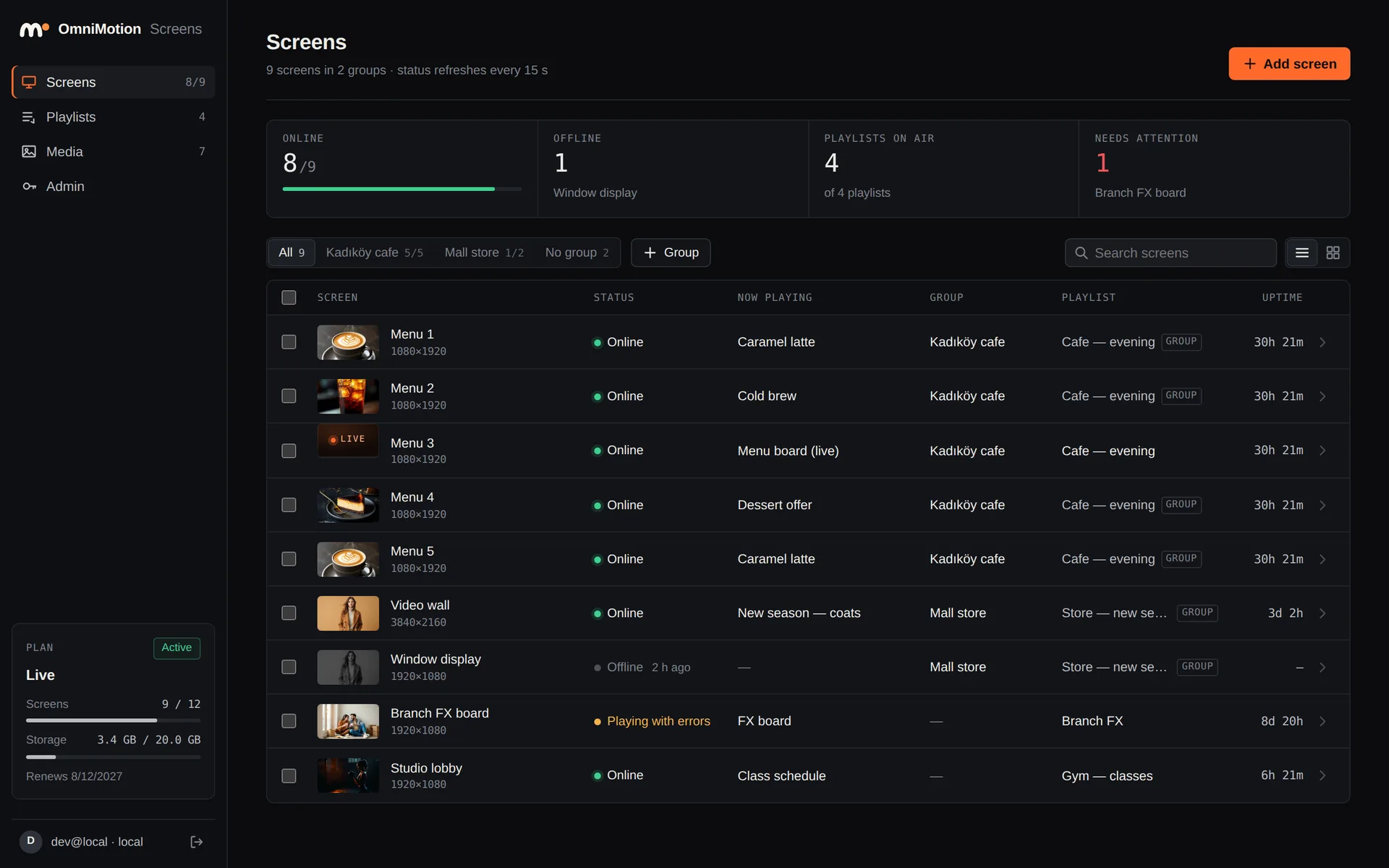
Without walking to the screen: pair it, group it, change what plays.
- 01
Group them.
Group branches or floors and give each group a playlist.
- 02
Playlists.
Video, images, web pages and live scenes; you set order and timing.
- 03
See their status.
Online or not, what is playing, when it was last seen.
- 04
Offline playback.
Content is stored on the screen and keeps playing without internet.
Live in five minutes.
No installer needed.
- 1
Open the player.
A six-digit code appears on the screen.
- 2
Type the code into the panel.
Name the screen and add it to a group if you like.
- 3
Pick a playlist.
A template, a video or a live scene: the screen starts playing right away.
Your screen is ready.
No new hardware. Install the player on the screen you already have.
- 01LG webOS SignageProfessional LG displays and LEDs; install from USB.USB · network
- 02Browser & kioskAny screen or mini PC with a modern browser.Web address
- 03Android TV & boxAndroid TV, Fire TV and signage boxes.App
- 04Samsung TizenSamsung commercial displays.App
- 05WindowsWindows media players and PCs.App
Per screen, per month.
No setup fee, no contract. One screen is always free; try Live free for 14 days.
Starter
- Video, images, web pages
- Playlists and groups
- Remote management, offline playback
- Screen status and alerts
Live Recommended
- Everything in Starter
- Live scenes and ready-made templates
- Data binding: POS, sheets, APIs
- Design with an AI assistant + MCP
- 50 AI images a month
Enterprise
- Everything in Live
- Multiple sites, users and roles
- Templates made for your brand
- Onboarding, training and priority support
Prices exclude VAT. To buy, write to us: we send a quote and an invoice, and turn your screens on the same day. Compare plans in detail →
- HTTPS everywherePanel, screens and servers
- Hashed screen keysA removed screen loses access at once
- Every change loggedWho did what, and when
- You approveNothing goes live on its own
- GDPR and KVKKBuilt for EU and Turkish data law
Which screen should I buy?
Usually none. Start with LG, Samsung, Android or Windows displays, or any screen with a browser.
What if the internet goes down?
Content is stored on the screen. The last playlist keeps playing and updates when the connection is back.
I don’t have a designer.
Start from a template or describe it to your assistant. Change the words and colours and you are done.
Can I try it first?
Yes. One screen is free with no time limit, and you can try Live with three screens for 14 days. No card needed.
How do I buy?
Write to us with the plan and the number of screens. We send a quote and an invoice, and turn your screens on the same day.
Start with one screen.
Bring them all alive.
Open a free account or ask for a 20-minute demo, and we will build the right scene for your space together.
Start free →Talk to us
Thank you. We will get back to you within one business day.